HOW TO USE EMAIL VERIFICATION TOOL AT CHECK-EMAILS.NET
I. EMAIL VERIFICATION TOOLS IN HOM PAGE (FREE)
- With this tool, you just need to type or paste the content containing the email into the box outside the homepage.
- Note: when entering emails, each email should be separated by a line, comma, or semicolon,...
- Then click CHEK NOW, the system will automatically filter the emails contained in that content and perform verification.

Photo1
- Verification results will display in the box below with the comments: OK (email exists can send); valid, but not exis; not valid and not exist.
- Notes: This tool only checks 10 emails at a time.
II. EMAIL FILTER TOOLS (FREE)
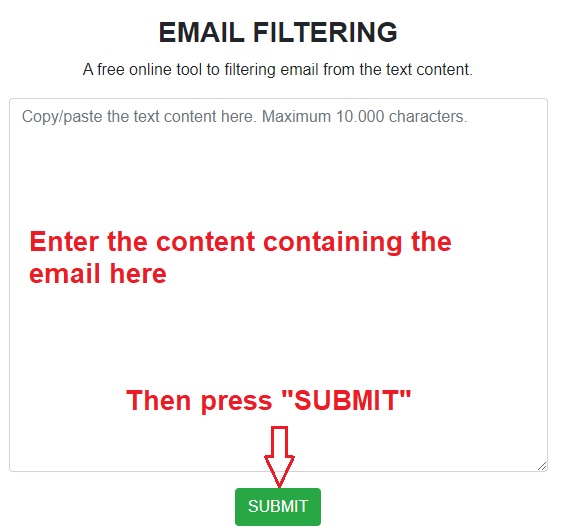
Photo 2
- With the email filter tool, First, you need to visit https://check-emails.net/email-filtering.php and enter anything that contains email in the box, then press SUBMIT.
- The system will filter out the email list for you. You just need to click on VIEW RESULT to see the results.
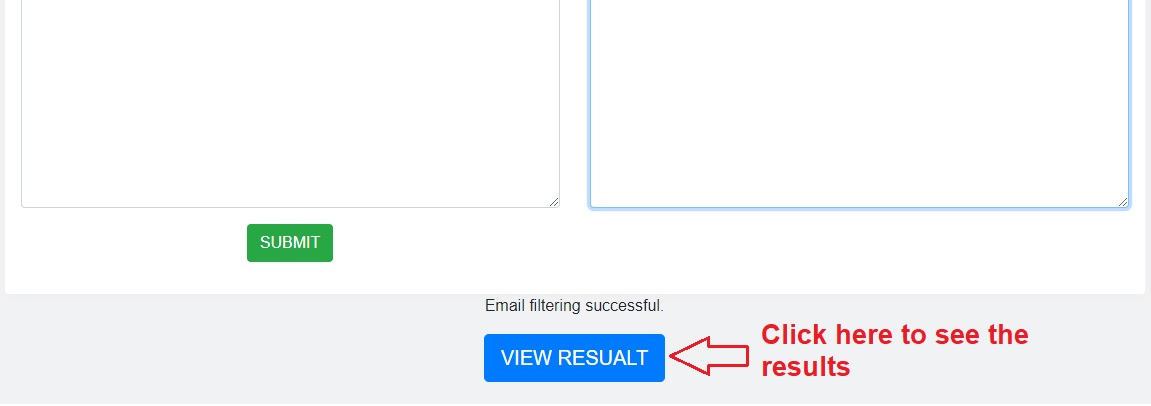
Photo 3
- Notes: With this tool, you can only enter up to 10,000 characters.
III. EMAIL VERIFICATION TOOL FROM .TXT OR .CSV FILE UPLOADED
1. Upload files
- This is the main tool of this website. To use this tool, you first need to register an account and make package payments via paypal or visa, master cards that paypal has supported.
- Once you have an account, log in to the account and have credit in the account. You access the page https://checkemail.webthanhha.com/files-list.php
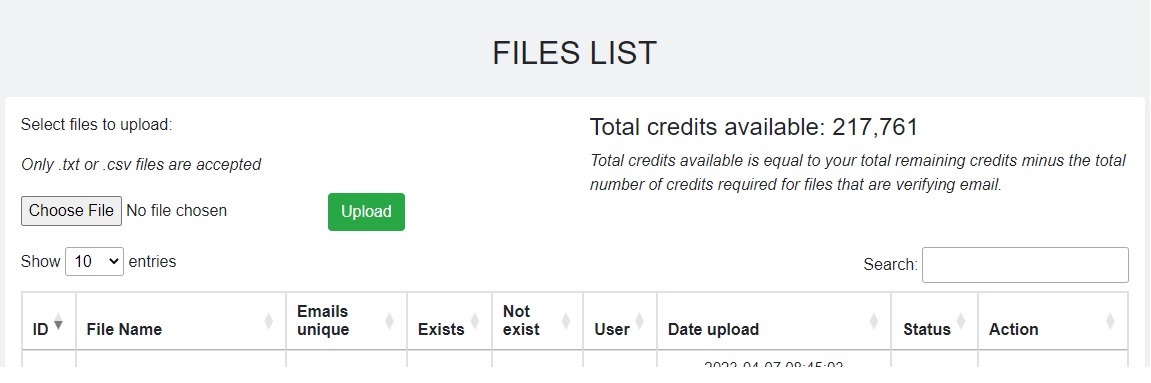
Photo 4
- Here, you upload the file containing the email list to be verified. Note: The system only accepts .txt and .csv files.
- The .CSV file will be returned in column form after verification.
- You click Choose File then click Upload and wait a bit for the system to upload your file.
- After successful upload, your file will show up in the list below with the status Ready for check meaning the file is ready for verification.
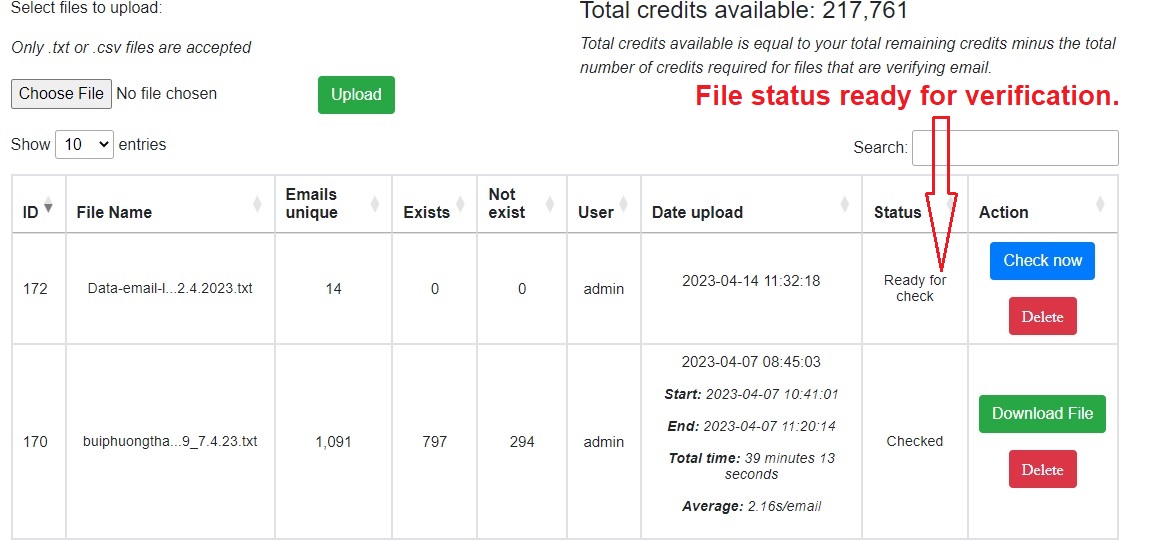 Photo 5
2. File verification
1. Upload files
The file parameters displayed in detail on the table include:
- File name: The name of the uploaded file
- Unique Emails: Is the number of unique emails of the file
- Exist, Not Exist: 2 indicators that determine the number of emails that exist and do not exist will be updated continuously after clicking verify.
- User: The username that uploaded the file
- Date upload: File upload time (GMT +7)
- Status:
+ Ready for check: File is ready for verification
+ Checked: The file has been checked and can be downloaded.
+ Checking: File is being verified
+ Waiting...: File is waiting to be verified.
+ Threading: File is split by thread to speed up verification.
2. Email verification
2.1 Files with less than 1000 unique emails:
- You need to do email verification right away (no threading). Click Check Now to verify email now.
- If the file has less than 1000 unique emails, verify the email immediately (not split by stream).
- The Action column will have the last email verification update time, and the Exist and Not Exist columns will have the email continuously updated once an email is verified.
- After the email verification is complete, the Status column will change to checked meaning the file has been verified, and you can download the email list.
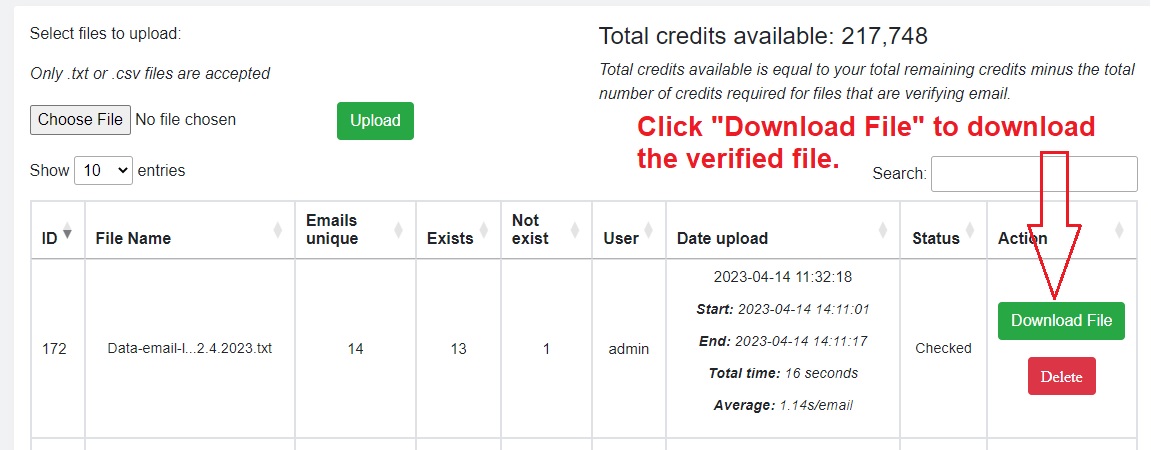
Photo 6
2.2 Files with more than 1000 unique emails:
- You have 2 buttons to choose from email verification CHECK NOW and THREADING.
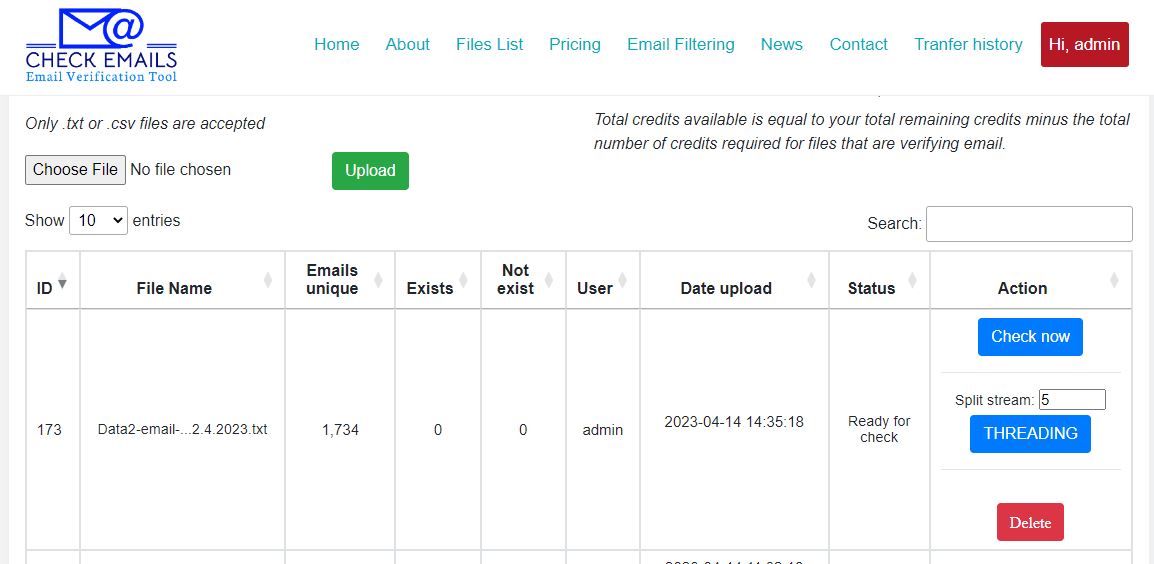
Photo 7
- With CHECK NOW is the same as in step 2.1. We recommend using THREADING for faster checking.
- With THREADING, can choose to split from 2 to 10 streams. The stream number is displayed at Split stream: you can change it between 2 and 10.
- After selecting the number of streams, click THREADING.
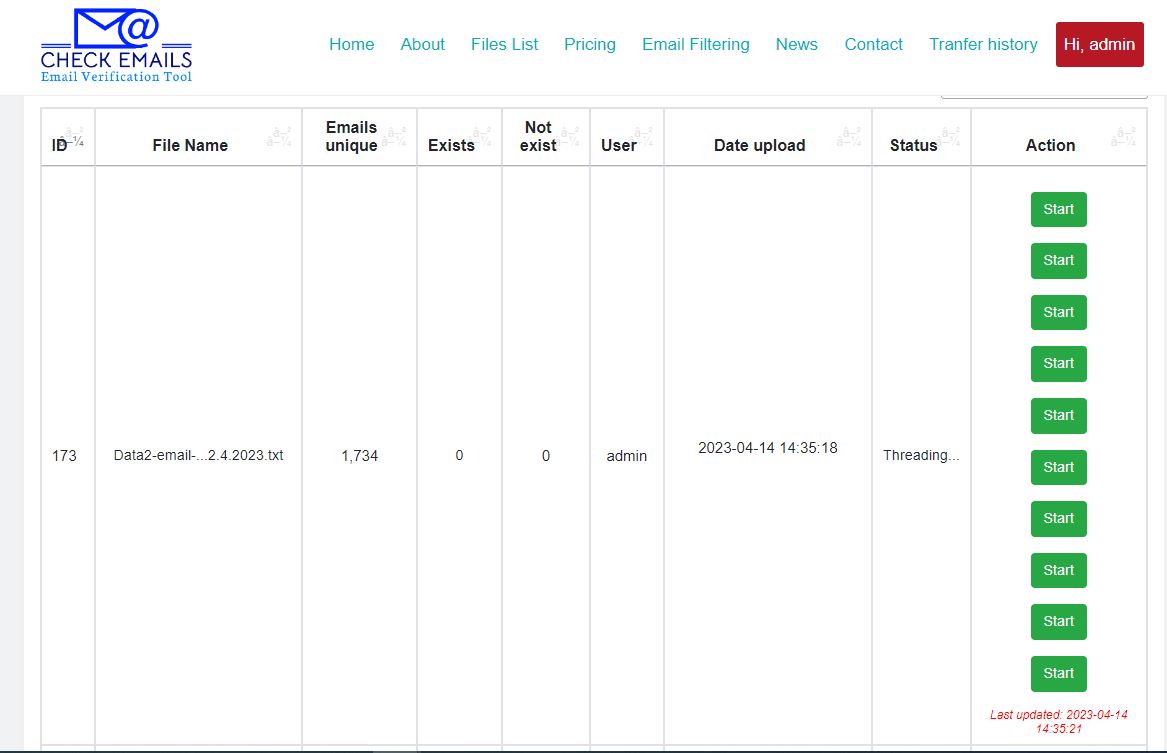 Photo 8
- Here you see the corresponding thread number displayed. Now it is simple, you click each Start button to verify the email for each thread. You can right click and select Open link in new tab to open a new window.
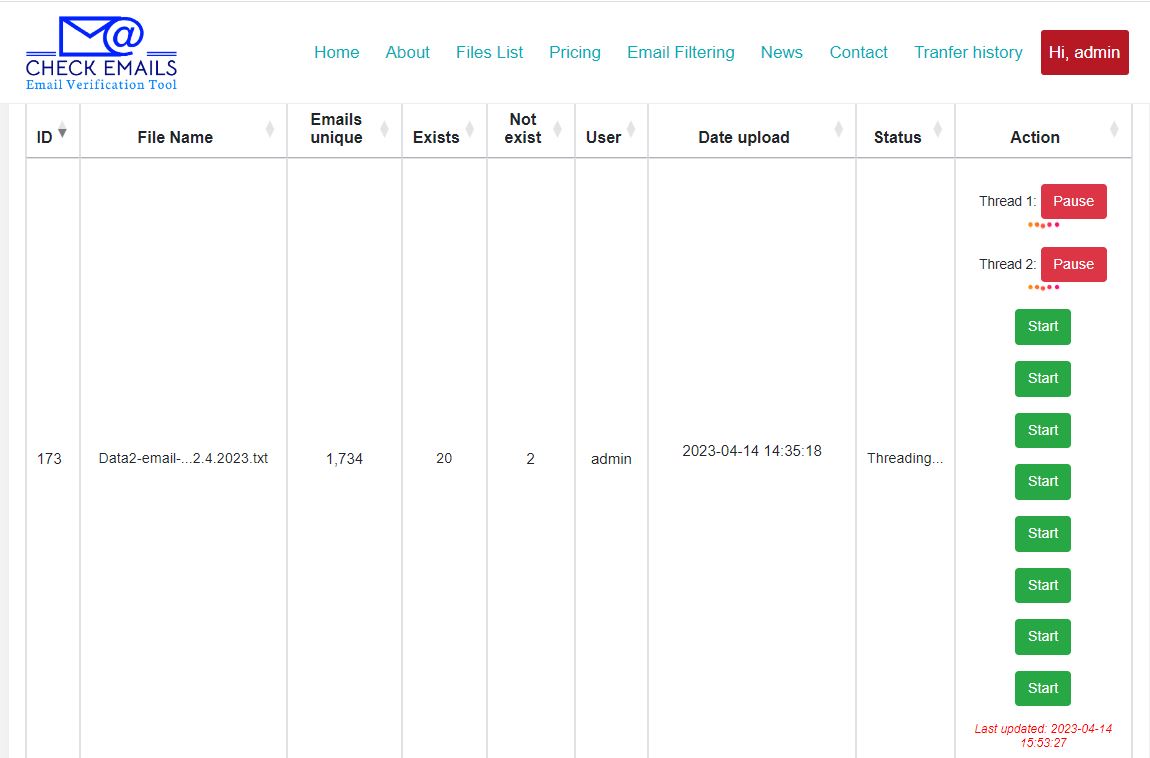
Photo 9
- For each window that pops up, details of email verification are shown: connecting to the mail server of the email to be checked, sending HELLO test, RESET, and QUIT newsletters. (Email verification process).
- For each thread being checked, you can stop at any time by pressing PAUSE.
- The Status column is showing Threading... which means it is doing email verification by threading.
- At the bottom of the Action column is the time the last email verification was in progress.
- The verification flows will be hidden by themselves.
- The system performs email verification, there will be Waiting.. time in the Action column of each thread, then it will automatically run again.
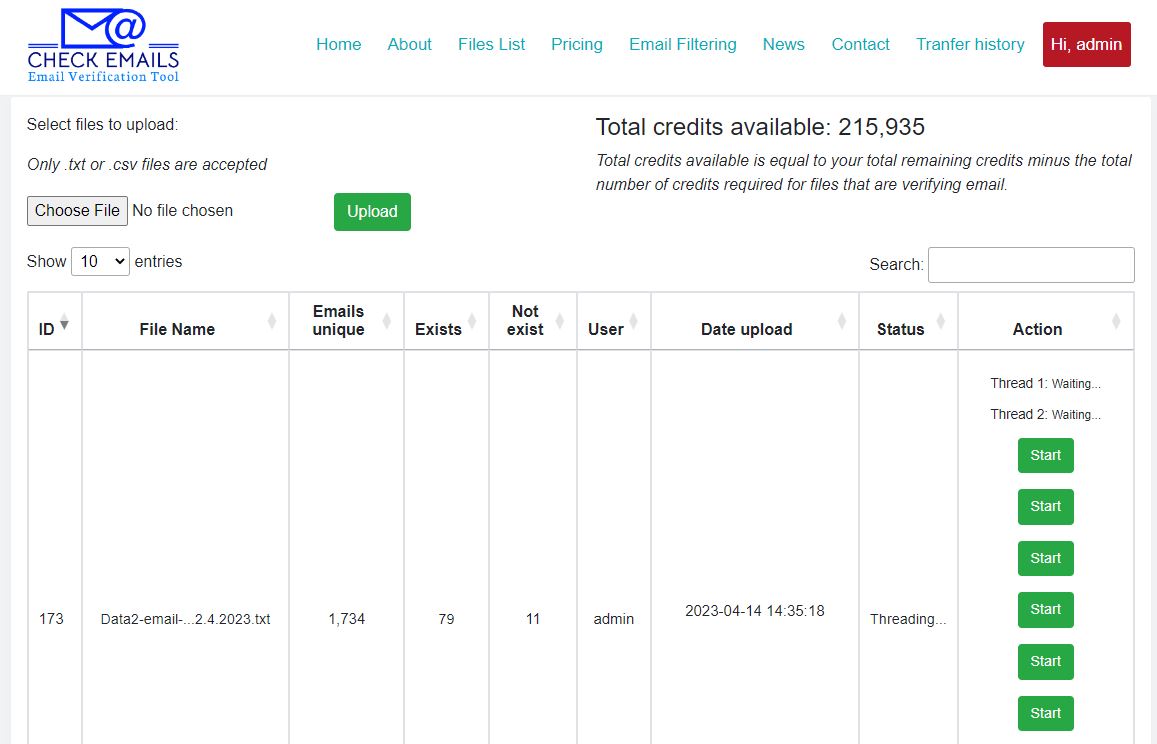
Photo 10
- The system will run automatically until the last email is verified. Then the Staus column will change back to Checked and you can download the verified email file.
Download the full document here
THANK YOU FOR READING HERE.
WISH YOU HEALTH AND A EFFICIENT WORKING DAY